

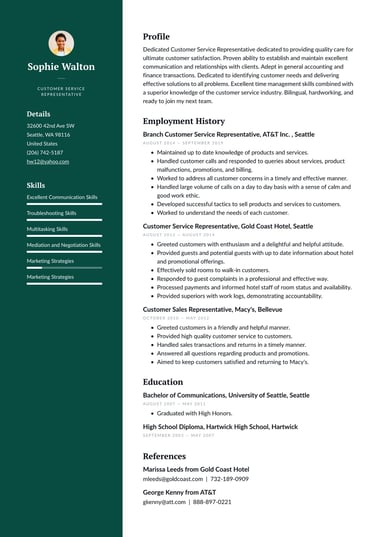

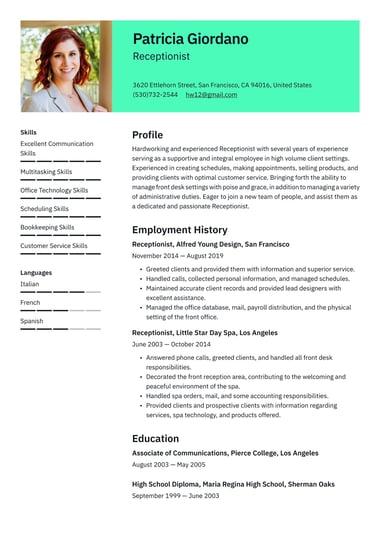
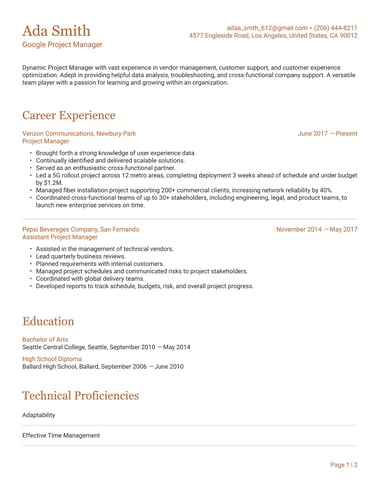
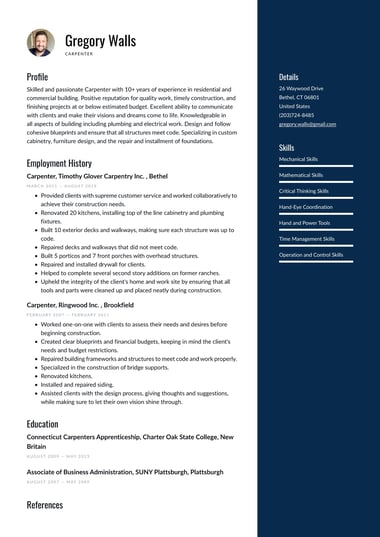
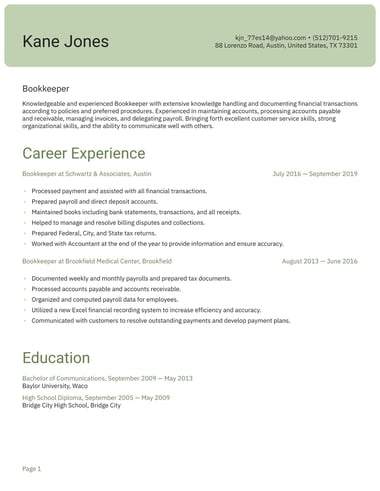
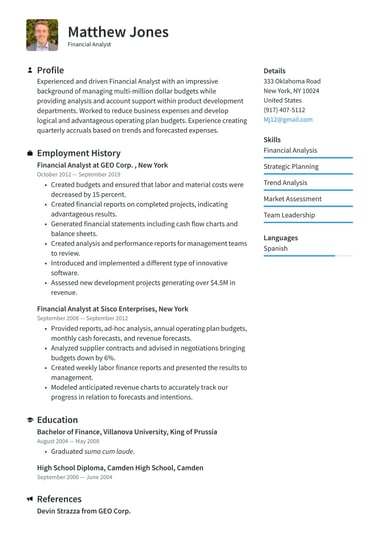

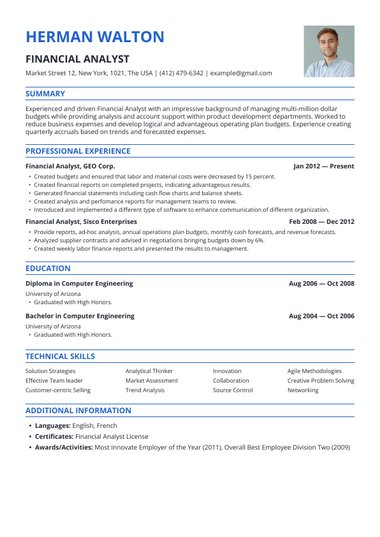
Google Docs comes with five free resume templates, and each one opens as your own editable copy straight from the Template gallery.
A Google Docs resume template is a sensible choice when you want a quick, no-cost resume and are comfortable handling the layout yourself.
Below, Resume.io’s career experts show you how to find each template, which design suits your experience, and when a resume builder will save you time instead.
Does Google Docs have free resume templates?
Yes. Google Docs has five free resume templates: Serif, Coral, Spearmint, Modern Writer, and Swiss. Each Google Docs resume template comes with any Google account, opens as an editable copy, and downloads as a PDF or Word file.
None of them requires a paid Google Workspace plan.
The five designs cover the essentials, but they share a similar structure.
Knowing what the built-in Google Docs templates include before you start saves you from rebuilding sections halfway through.
| Feature | Built-in Google Docs resume templates |
|---|---|
| Number of templates | Five |
| Cost | Included with a Google account |
| Download formats | PDF and Word |
| Summary section | Not included in any of the five |
| Awards section | Included in all five |
| Extra sections | Serif adds projects and languages |
The missing summary is the first gap to fix, as a short summary under your name tells a recruiter who you are and what role you want before they reach your work history.
Google’s gallery also stops at five designs, with no options built for a specific industry or experience level, so job seekers who want more choice often turn to online resume builders.
How do you find resume templates on Google Docs?
You can find Google Docs resume templates in four steps: open Google Docs, open the template gallery, scroll to the resumes section, and select a design to start editing.
The whole process takes a couple of minutes and needs nothing more than a free Google account.
Follow these steps to access the built-in gallery:
Step 1: Open Google Docs
Go to docs.google.com and sign in with your Google account.
If you are already inside a blank document, you can also select "File", then "New", then "From Template Gallery".
Step 2: Open the template gallery
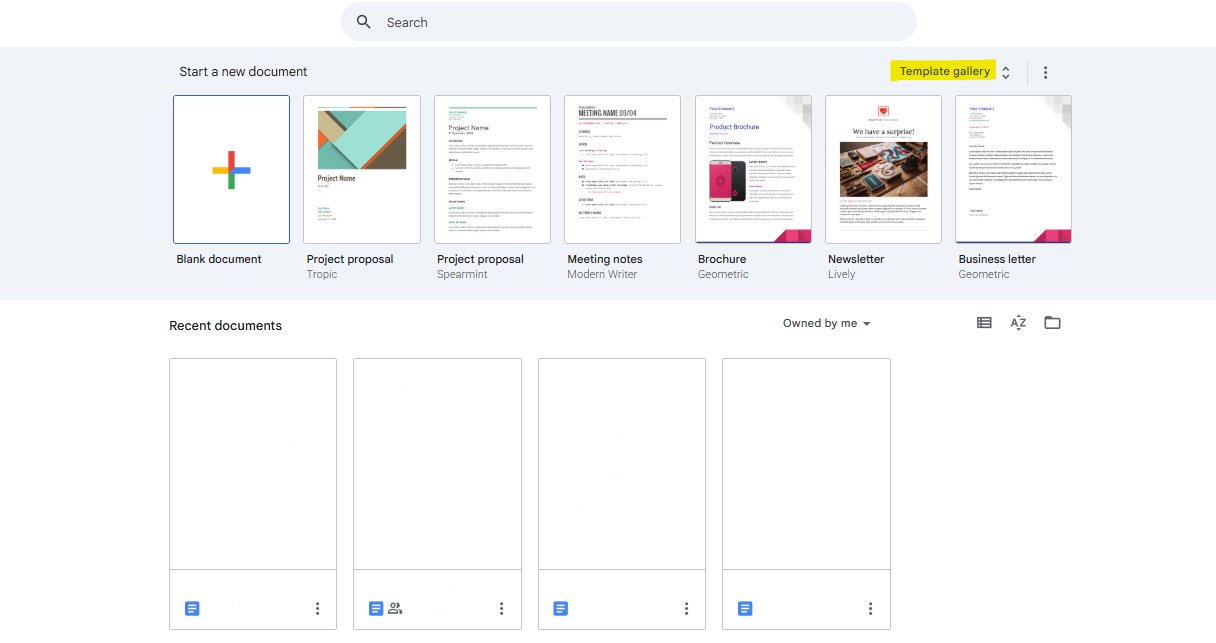
Click "Template Gallery" in the upper-right corner of the homepage.
This expands the full library of document templates, not just resumes.
Step 3: Scroll to the resumes section
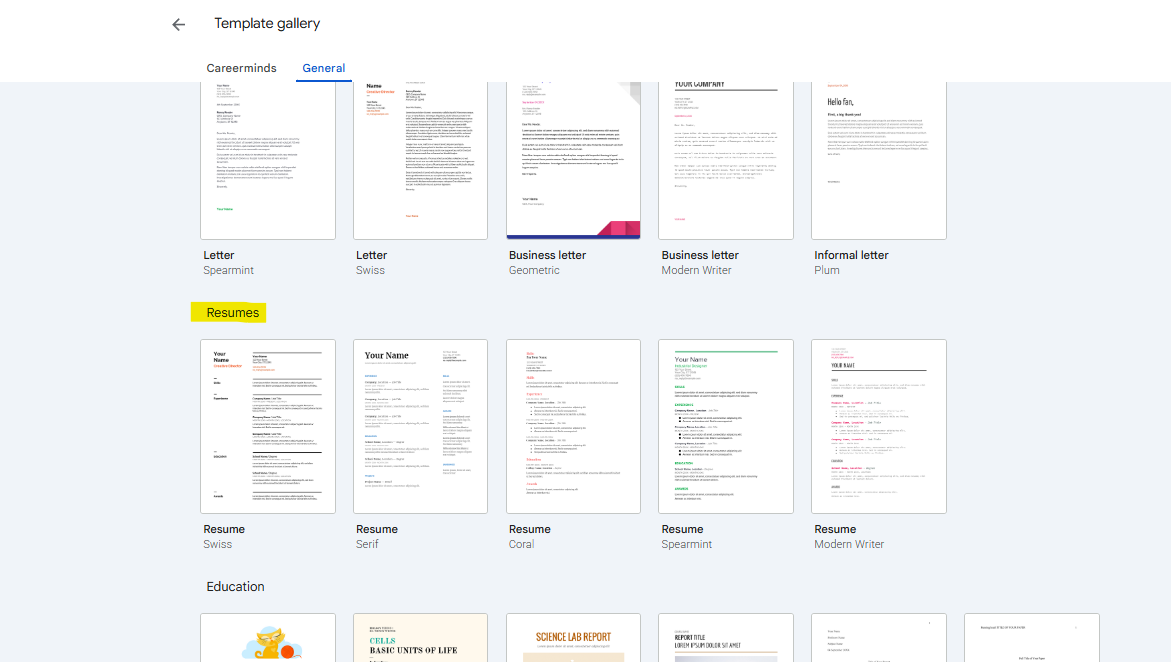
Scroll down until you reach the section labeled "Resumes".
You will see the five built-in designs displayed as thumbnails.
Step 4: Select a template and start editing
Click the template you want. Google Docs opens an editable copy in your Drive automatically, so you can replace the placeholder text with your own details right away.
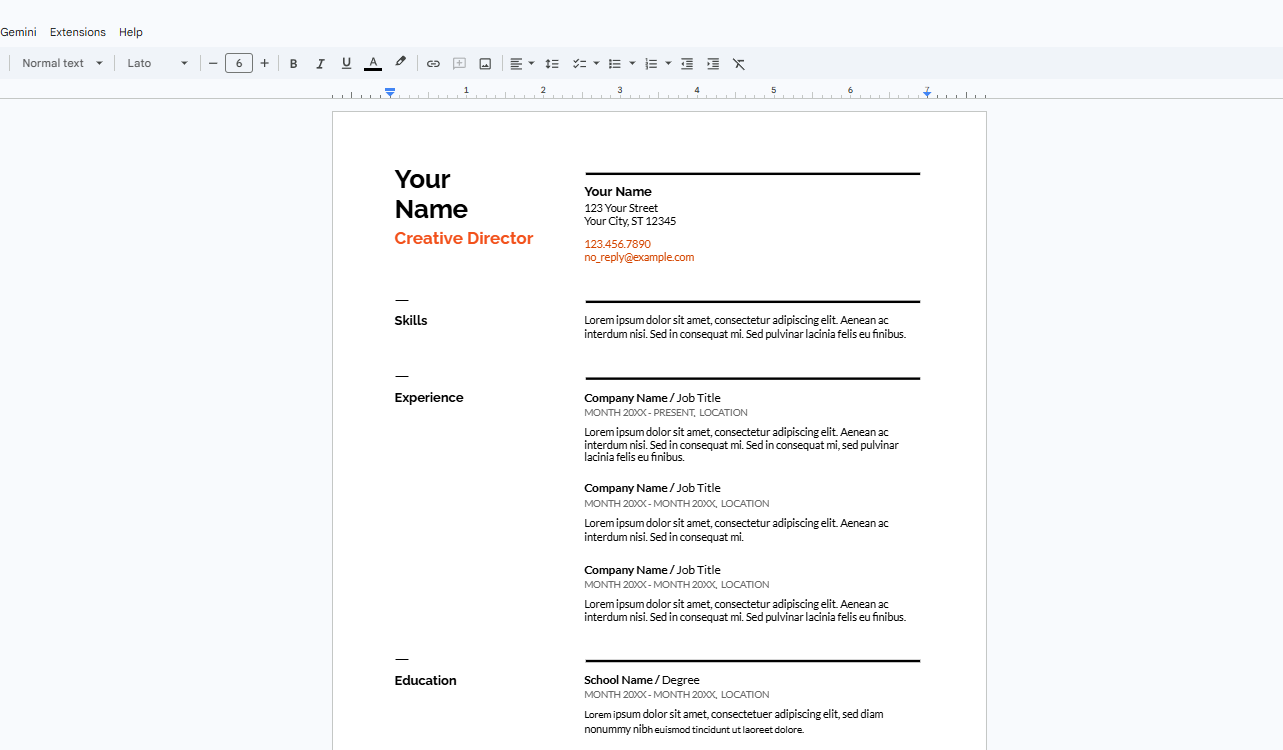
Once your copy is open, you own it.
Any edits save to your Drive without overwriting the original, so you can return and tailor it for different applications whenever you need.
You can also reach the same Google Drive resume template gallery from the Google Docs home screen, by clicking Template gallery in the top right corner.
When the Resumes section does not appear, the cause is usually one of two settings.
| Problem | Likely cause | Fix |
|---|---|---|
| Resumes section missing | Account language is not set to English | In your Google Account, open Personal info, then General preferences for the web, then Language, and choose English |
| Gallery looks limited or different | You are signed in with a work or school account | Your organization may manage the gallery, so try a personal Google account |
Once the copy is open, give it a clear file name, such as your full name followed by “Resume,” and you can edit every word, color, and section in the template.
How do you make a resume on Google Docs?
To make a resume on Google Docs, open a resume template, replace the sample text section by section, add a summary under your name, check the formatting, and download the file as a PDF.
A Google Docs resume template handles the structure, so most of your effort goes into writing content that fits the job you want.
- Fill in the header: Add your name, phone number, professional email, city, and LinkedIn URL
- Add a summary: Write a few lines under your name about your experience and the role you are targeting
- Write your experience: List jobs in reverse-chronological order and frame each bullet as one of your achievements rather than a duty, using a structure such as the XYZ formula
- List your skills: Match them to the keywords from the job description
- Add your education: Include your degree, school, and graduation year, or your expected date if you are still studying
- Remove what you do not need: Delete sample sections, such as awards or languages, that do not apply to you
- Check the formatting: Review spacing, alignment, and font size, then read through for leftover sample text
- Download the file: Click File, then Download, then PDF Document.
The template cannot tell you what to say.
The core rules of how to write a resume still apply inside Google Docs, from leading with relevance to quantifying results and customizing each version for the role.
A common resume mistake is sending the same Google Docs resume to every employer.
Make a copy of your finished file for each application by clicking File, then Make a copy.
That way you can adjust keywords for each role without losing your master version.
Which Google Docs resume template should you choose?
Choose a single-column Google Docs resume template, such as Spearmint, Coral, or Modern Writer, if you plan to apply through online job portals.
Pick Serif or Swiss when you need a compact two-column layout for a printed or emailed resume.
How you will apply matters more than color or style when you choose between them.
Single-column layouts read from top to bottom, the order recruiters scan in.
Two-column designs fit more onto the page, which helps when you are aiming for a one-page resume, and they look tidy on paper.
Layout and resume format are separate choices and any of the five templates can hold a chronological, functional, or hybrid resume, so settle on the format that suits your work history first, then pick the design.
| Template | Layout | What stands out | Suits |
|---|---|---|---|
| Spearmint | Single column | Generous white space and a clean look | Anyone who wants a simple, elegant resume |
| Coral | Single column | Coral-colored section titles | Corporate roles where a little personality helps |
| Modern Writer | Single column | Bold header and bright entry titles | Writers, marketers, and communication roles |
| Serif | Two columns | Skills in a right-hand column, plus projects and languages sections | Students and early-career applicants |
| Swiss | Two columns | Bold header and thick dividing lines | Printed copies and in-person networking |
Whatever template you choose, one of the most reliable resume tips still applies: keep the page easy to scan. Amanda Augustine, CPRW, CPCC, Resume.io’s career expert, advises job seekers to “stick to a clean, consistent layout with adequate white space that makes it easy for readers to quickly understand and appreciate your career story.”
Spearmint is the safest all-round Google Docs template for that reason.
A single-column design also extends more cleanly into a two-page resume when your experience runs past one page.
Are Google Docs resume templates ATS-friendly?
Google Docs resume templates can work with an applicant tracking system (ATS), but the result depends on the layout you choose. Single-column templates carry the least risk.
Two-column designs, such as Serif and Swiss, carry more, because some systems read the columns out of order and mix up your details.
An ATS is software employers use to collect, sort, and filter applications.
97.4% of Fortune 500 companies use a detectable applicant tracking system (Jobscan, 2026), so a Google Docs resume sent to a large employer is likely to pass through one before a recruiter sees it.
- Use standard headings: Label sections Experience, Education, and Skills so the system recognizes them
- Keep contact details in the body: Some systems skip the document’s header and footer areas
- Skip images and icons: Graphics carry no readable text
- Mirror the job posting: Use the exact job title and key terms where they honestly apply
- Spell out abbreviations once: Write the full term next to the short form, such as certified public accountant (CPA).
Our ATS templates are another option, with layouts designed for screening software.
How does Resume.io compare with Google Docs for building a resume?
Google Docs costs nothing and stays flexible, which makes it a good match for a simple resume you are happy to format yourself.
Resume.io suits job seekers who want more template choice, automatic formatting, and writing help, though PDF and Word downloads require a paid plan.
Your budget and the time you have should decide between them.
| Area | Google Docs | Resume.io |
|---|---|---|
| Cost | Included with a Google account | Free plan available. Paid plans renew every 4 weeks or every 3 months, with a 7-day money-back guarantee |
| Template choice | Five built-in resume templates | 38 template styles |
| Formatting | Manual, so you adjust spacing and alignment yourself | Layout and spacing adjust automatically, with manual edits still possible |
| Writing help | Spelling and grammar check | AI phrase suggestions and a summary generator |
| Downloads | PDF and Word, at no cost | Free plan: TXT only. Paid plans: PDF on every template and DOCX on many |
| Sharing | Share links and comments, at no cost | Shareable resume link on paid plans |
Google Docs makes more sense when:
- You are sending a small number of applications for one type of role
- You already have a recent resume and only need a cleaner layout.
Resume.io makes more sense when:
- You are tailoring versions for several different job titles
- You are starting from scratch and want writing suggestions inside the editor, rather than text pasted in from ChatGPT
- You expect to keep updating your resume over a long job search.
The two tools also work together, in that you can build a resume in Resume.io, download it as a PDF or DOCX on a paid plan, and upload it to Google Drive to store or share it.
The free plan’s TXT download carries no layout or design, so you would need to format that version yourself.
Can you find industry-specific Google Docs resume templates?
Google Docs does not offer industry-specific resume templates. Its five built-in designs are general-purpose, so a nurse, a truck driver, and a civil engineer all start from the same layouts.
For role-specific guidance, pair a Google Docs resume template with a resume example from your field and adapt the wording to your own experience.
A resume example shows which skills, certifications, and results matter most in a field, which a blank template cannot do.
- Healthcare: Nurse and doctor resume examples
- Education: Teacher resume example
- Finance: Accountant resume example
- Engineering: Civil engineer resume example
- Transportation: Driver resume example
- Students: Student, college student, high school student, and internship resume examples.
To start from a design matched to your career stage instead, three Resume.io templates cover different needs:
- London: A classic structure that puts years of experience first, for administrators and detail-focused professionals
- Prague: A skills-forward layout for technical roles
- Vienna: A two-column design with a modern header, for creative fields.
Is it better to send a resume as a PDF, Word file, or Google Doc?
Send your resume as a PDF unless the job posting asks for a Word file.
A PDF keeps your layout fixed on any device, and most screening systems read text-based PDFs without trouble.
Avoid sending a Google Docs link, because some employers block external links and a live file can change after you send it.
| Format | Use it when | Watch out for |
|---|---|---|
| The posting gives no preference | Screening software cannot read scanned or image-based PDFs | |
| Word (.docx) | The posting or portal asks for Word | Fonts and spacing can shift on another computer |
| Google Docs link | An employer specifically requests one | The file can be edited, blocked, or never opened |
Google Docs exports both PDF and Word from the File menu, so switching formats never means retyping your resume.
Open the downloaded file once before you upload it to confirm the layout, spacing, and contact details look right.
Key tips
- Open Google’s resume templates from the Template gallery on the Google Docs home screen, then scroll to Resumes.
- Add a summary section yourself, since none of Google’s built-in resume templates includes one.
- Pick a single-column Google Docs template for online portals and save two-column designs for printed or emailed copies.
- Send a PDF, or a Word file when the posting asks for one, rather than a Google Docs link.
- Choose Google Docs when cost matters most, and a resume builder when you want more designs and automatic formatting.
FAQs
Here are quick answers to three more questions job seekers ask about Google Docs resume templates.
Is there a Google Docs CV template?
Yes. Google Docs offers the same five templates for a CV as for a resume, and some regions label the gallery section “CVs.”
In the US, a CV usually means a longer academic or research document, so expect to add sections for publications, research, and presentations yourself.
Are Google Docs resume templates good for students?
Yes. Google Docs resume templates suit students because they cost nothing and are simple to edit, and the Serif template includes sections for projects and languages.
Students with little work history can still write a resume with no experience by leading with education, projects, and volunteer work.
Can you open a Word resume template in Google Docs?
Yes. Upload the .docx file to Google Drive, right-click it, and select Open with, then Google Docs.
Some formatting may shift between programs, so check the spacing and fonts before you send the resume.